Google announced today that a transition tool is officially rolling out to all standard accounts, allowing users to directly import personalized contexts and entire chat histories from previous AI platforms into Gemini.
Table of Contents
- Seamless Data Integration via Settings
- Prompt for Extracting Previous AI Context
- Importance and Benefits of Maintaining Context
- Gemini Memory & Chat History Import FAQ
- Q. What prompt should I use to extract my 'memory' from other AIs?
- Q. I am on a paid plan, but I don't see the 'Import' feature in my settings. Why is that?
- Q. The official guide says to upload a 'ZIP file'. Should I change the summary prompt to say "Make it a ZIP file"?
- Q. Then where can I download the 'Full Chat History (ZIP file)' from my previous AI?
Seamless Data Integration via Settings

Users can easily proceed with integration by selecting the memory import option from the Gemini settings screen.
It is also possible to upload a ZIP file containing past chat histories to seamlessly resume interrupted conversations.
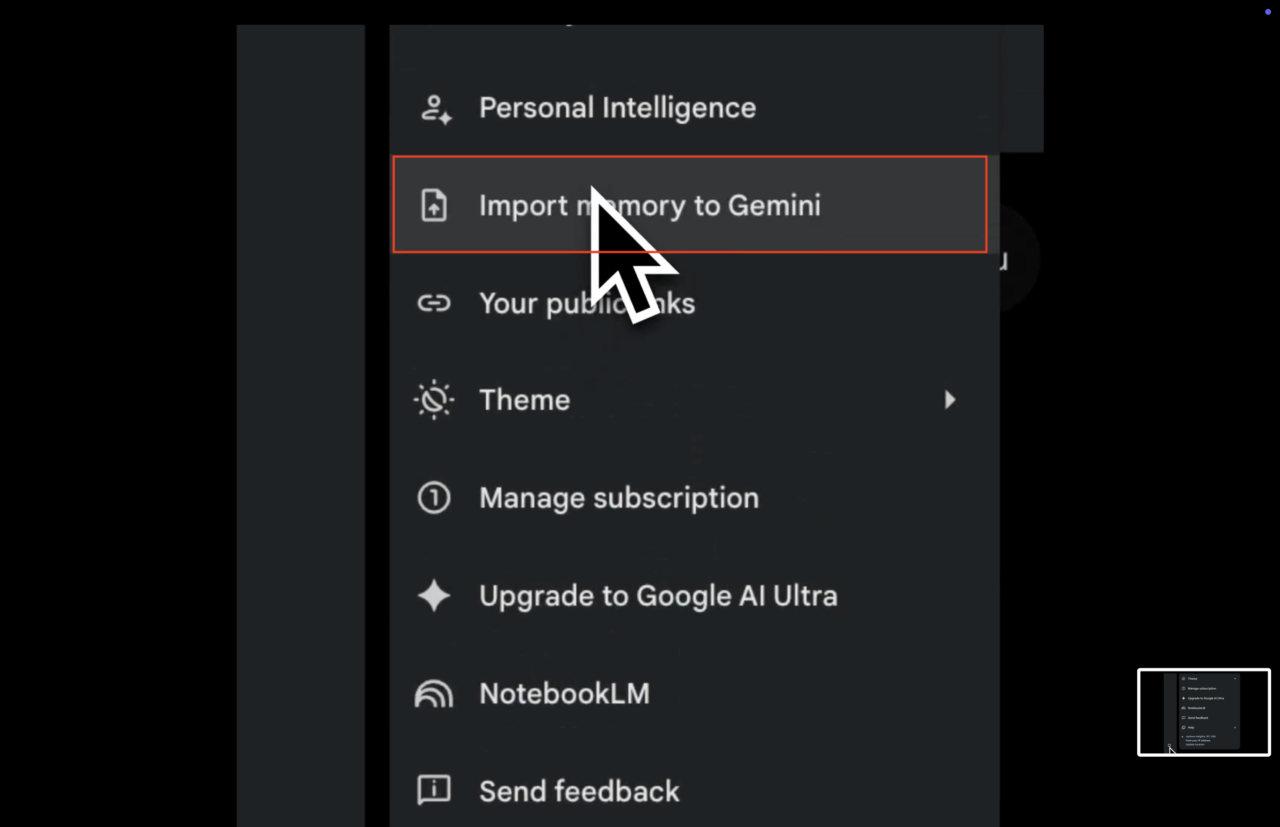
Additionally, the existing ‘Past chats’ feature will be renamed to ‘Memory’ within this week.
Prompt for Extracting Previous AI Context
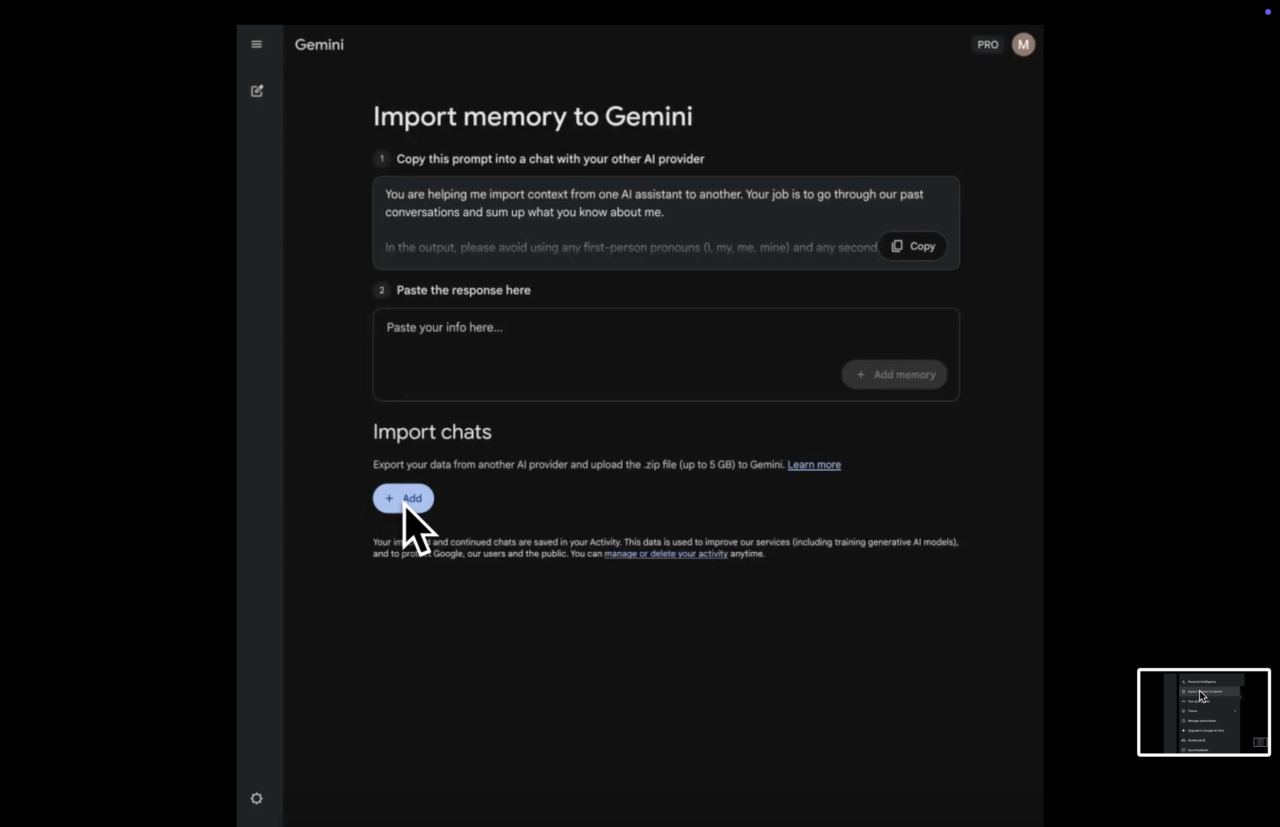
To transfer personal information most perfectly to Gemini, users must command their previously used chatbots (such as ChatGPT or Claude) with a prompt to extract all core contexts.
Please review our past chat history, the memories you've learned about me, and any Custom Instructions. To help me seamlessly transition to another AI assistant, extract all core context about me and write a comprehensive summary.

Organize it into clear categories using bullet points, including the following:
- Personal Details & Interests: My occupation, hobbies, frequently asked topics, etc.
- Work Style & Preferences: Preferred answer length, Tone & Manner, frequently used formats (tables, markdown, etc.).
- Key Projects & Context: Important projects or ideas we discussed extensively, values or rules I prioritize.
- Other: Crucial notes or characteristics the new AI must know when assisting me.

This summary will be injected directly into another AI system's 'memory', so please skip unnecessary greetings and write it as objectively and dense with information as possible.
Users can immediately complete the transition by copying the summarized result and pasting it into the settings screen.
Importance and Benefits of Maintaining Context
By bringing over the preferences and tastes learned by the existing AI, the burden on users to completely set up from scratch is significantly reduced.
Google added, “We focused on instantly recognizing key facts to seamlessly develop existing ideas.”
Gemini Memory & Chat History Import FAQ
Q.
What prompt should I use to extract my 'memory' from other AIs?
“Review our past chat history and the memory you’ve learned about me. Extract the core context needed when I transition to another AI (personal info, work style, key projects, etc.) and summarize it in a clear, categorized text format.”
Copy the output summary and paste it right into Gemini Settings > Import.
Q.
I am on a paid plan, but I don't see the 'Import' feature in my settings. Why is that?
If a notification saying “This feature is not available yet” appears, your account does not have access yet.
It usually rolls out over a few weeks after the announcement, so please wait a bit and the button will naturally appear in your settings.
Q.
The official guide says to upload a 'ZIP file'. Should I change the summary prompt to say "Make it a ZIP file"?
Memory (Preferences) Import: You copy and paste the ‘text’ written by the AI using the prompt.
Full Chat History Import: This does not use a chat prompt. You download your full history via the system settings (Data Export) of your previous AI app, and then upload that ‘ZIP file’ to Gemini.