Many developers are rapidly adopting Antigravity, a powerful AI coding assistant. However, do you feel stuck trying to connect your GitHub repository during the MCP server configuration?
Look no further! This ultimate guide gives you a streamlined, under-1-minute tutorial on generating a proper GitHub Personal Access Token and connecting it to the Antigravity IDE without any complex coding knowledge.
Follow this guide to unlock seamless GitHub integrations for your project instantly!
Table of Contents
- How to Generate and Configure the Antigravity GitHub MCP Token
- 1. Open the MCP Server Settings in Antigravity
- 2. Prepare for the GitHub Token Input
- 3. Navigate to GitHub Developer Settings
- 4. Generate a New Classic Token
- 5. Set Token Purpose and Necessary Scopes
- 6. Copy and Paste It Back to Antigravity
- Conclusion
How to Generate and Configure the Antigravity GitHub MCP Token
- By completing this connection, Antigravity will be able to read code, commit directly, and interact with Pull Requests autonomously.
- For security reasons, your generated token will only be displayed once. We strongly advise pasting it safely into your IDE immediately.
1. Open the MCP Server Settings in Antigravity
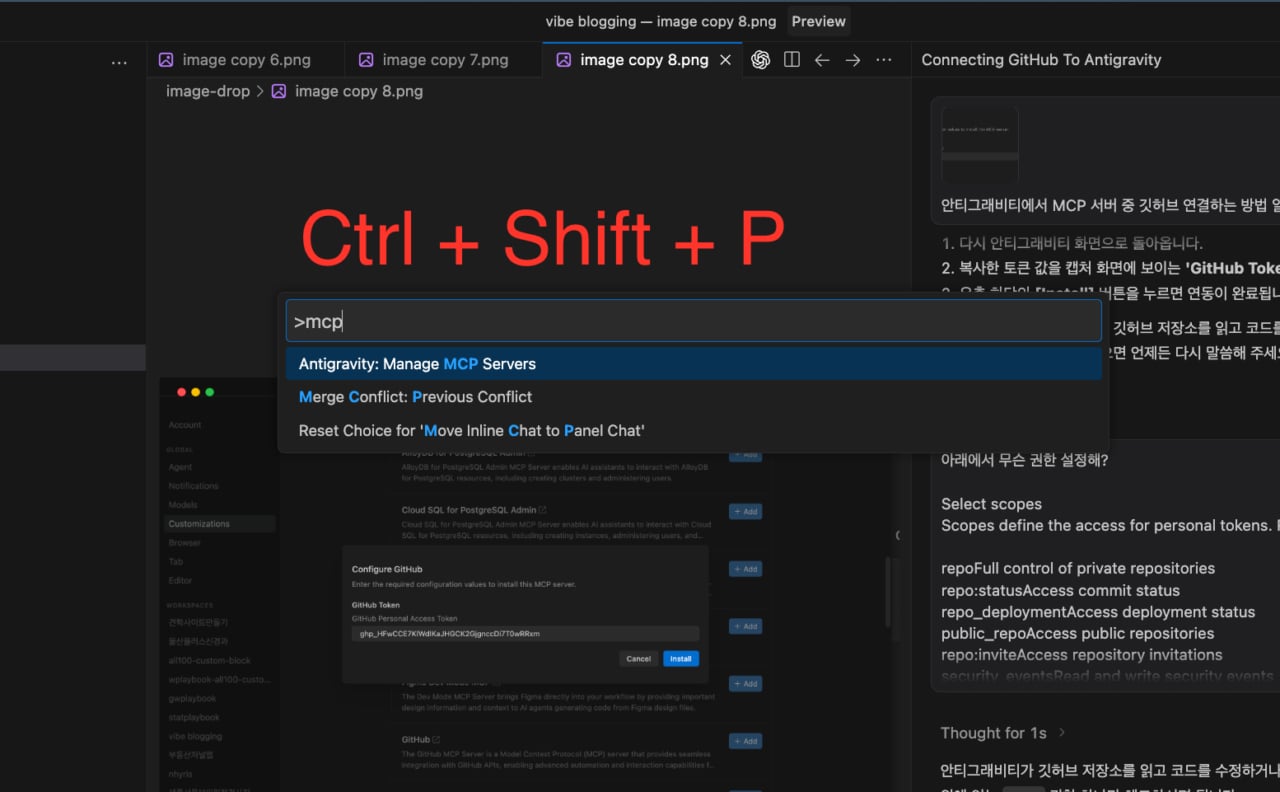
Antigravity Command Palette Manage MCP Servers
In your Antigravity editor window, hit Cmd + Shift + P on your Mac (or click the Settings gear icon at the bottom left) to open the Command Palette. Type MCP and select taking the Manage MCP Servers option.
2. Prepare for the GitHub Token Input
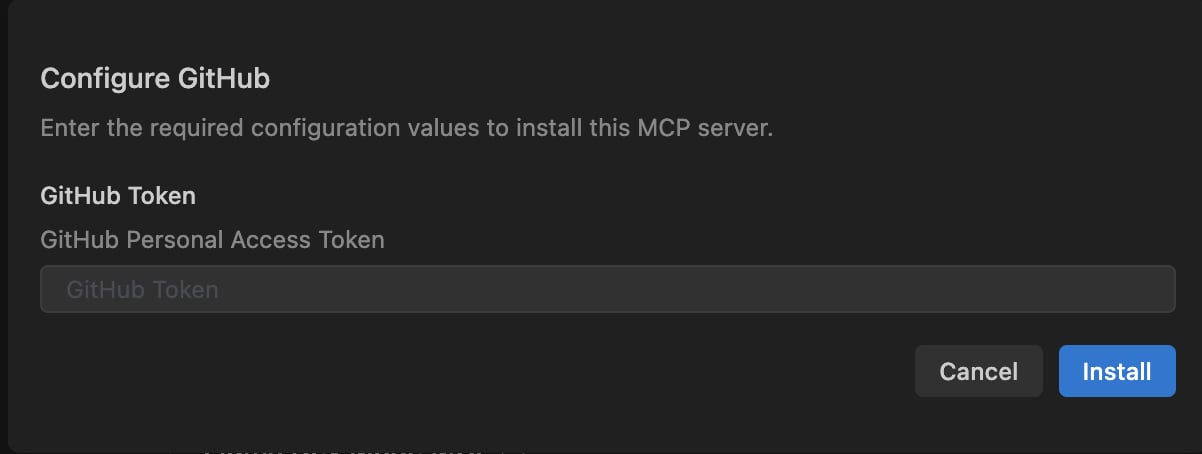
Antigravity GitHub MCP Configuration Modal
Locate GitHub from the server list. A modal will pop up demanding a GitHub Personal Access Token. Keep this window explicitly open while we fetch the key from GitHub in our browser.
3. Navigate to GitHub Developer Settings
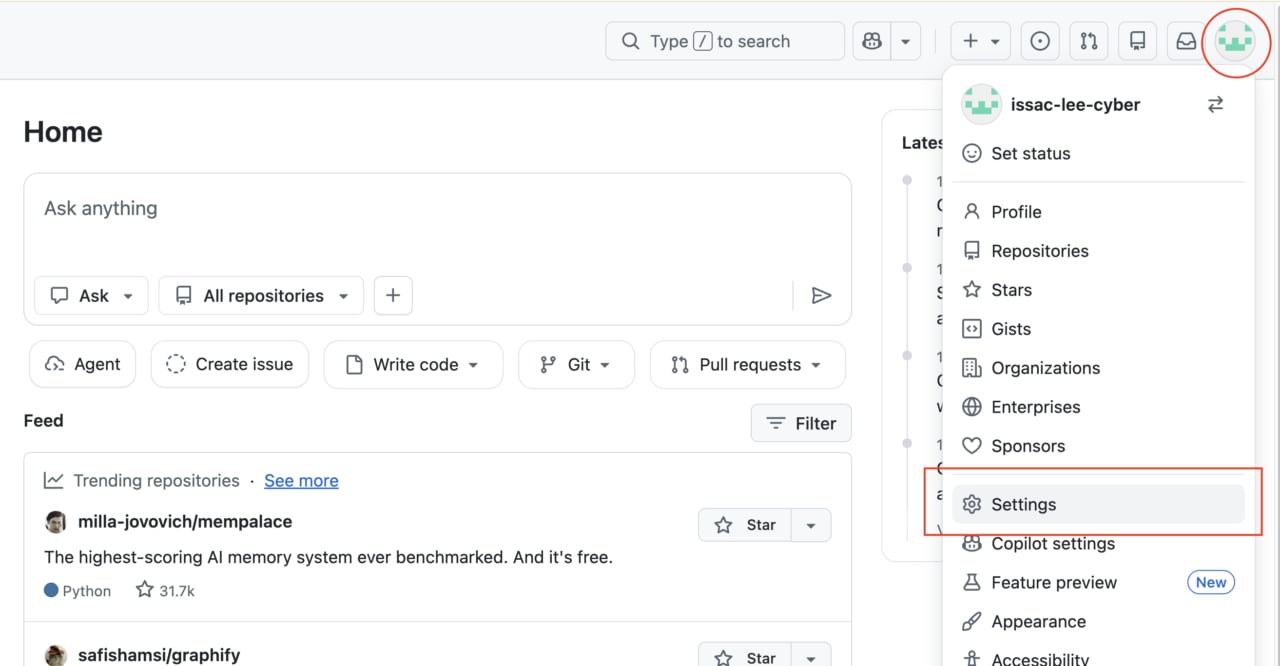
GitHub Profile Settings Dropdown
After signing in to GitHub, press on your profile picture in the top-right corner and jump to Settings.
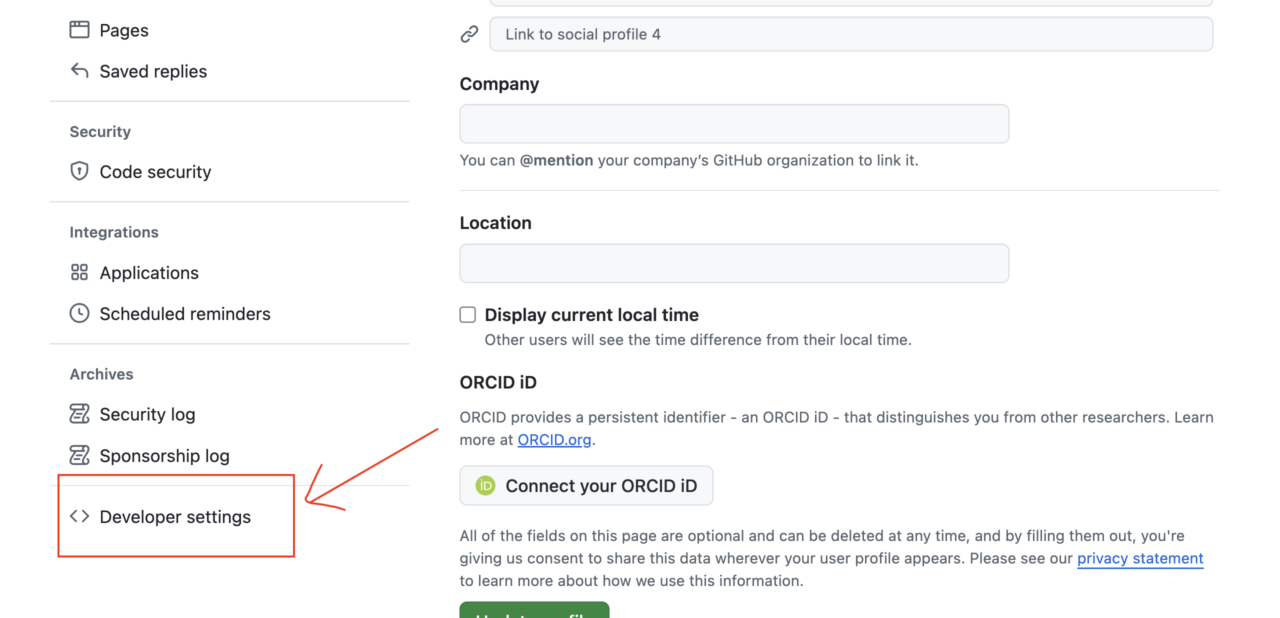
GitHub Developer Settings Sidebar
Scroll all the way down on the left-side navigation panel and click on Developer settings.
4. Generate a New Classic Token
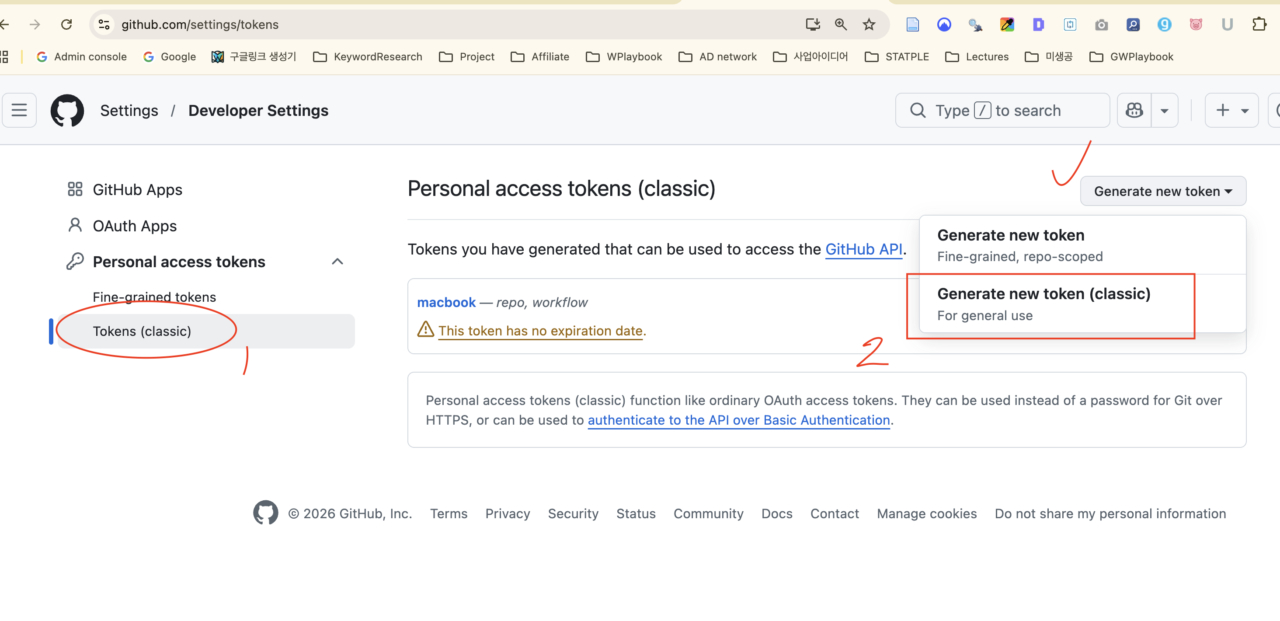
GitHub Generate New Token Classic
On the left tab, click on Personal access tokens followed by Tokens (classic). Next, find the Generate new token dropdown button on the right and select Generate new token (classic).
5. Set Token Purpose and Necessary Scopes
- This step is highly sensitive! Supplying insufficient scopes will lead to errors, whereas providing too much could expose severe security risks. Make sure you only check exactly what is needed.
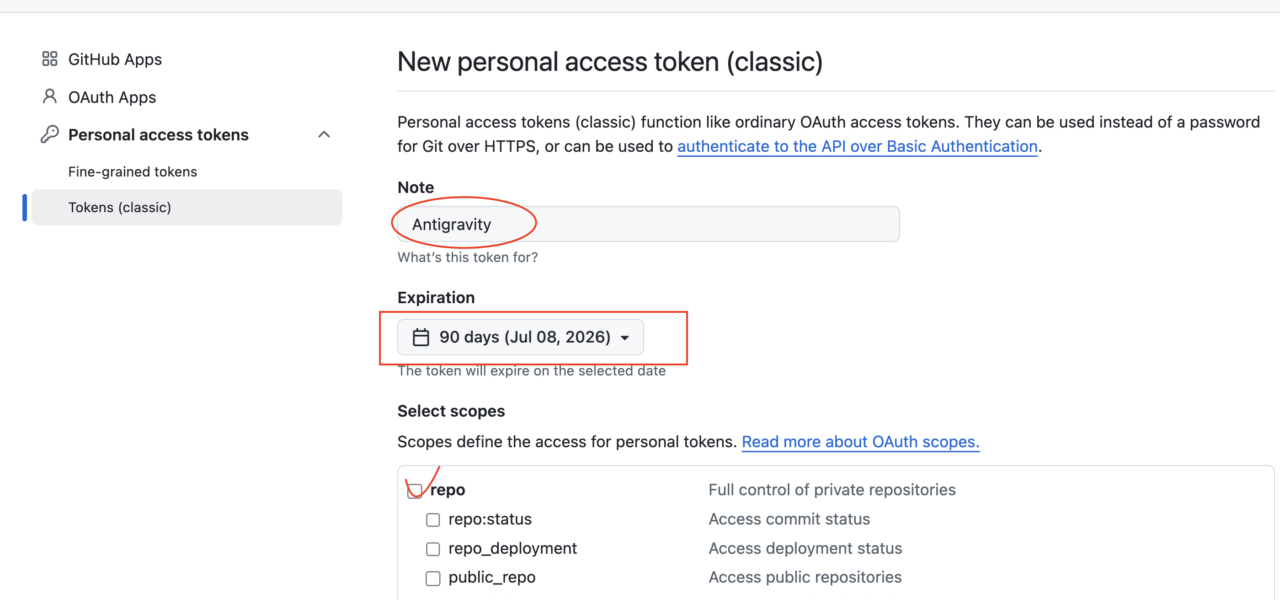
GitHub Personal Access Token Name and Expiration
Fill the Note field with a recognizable name like ‘Antigravity’. Alter the Expiration limit—setting it to 90 days establishes a solid balance between security and convenience.
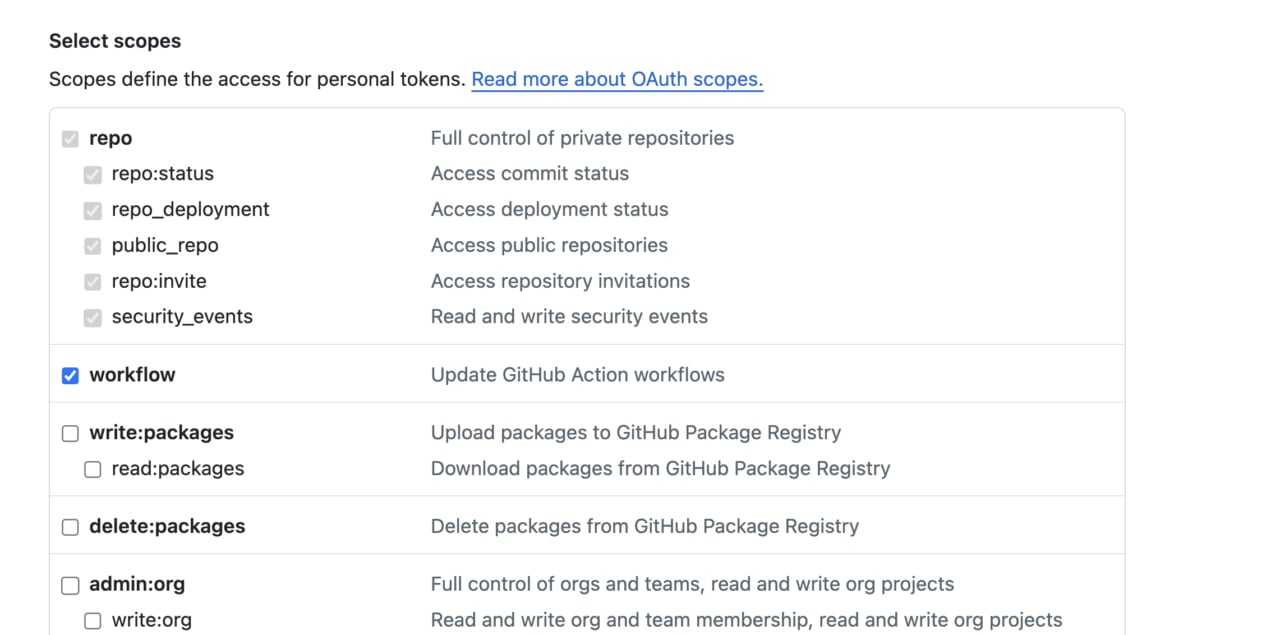
GitHub Token Scopes Repo Workflow Selection
Scroll down to the Select scopes section. Check the very first box labeled repo. Furthermore, if you plan to rely on Antigravity to automate continuous deployments or alter CI/CD files (.github/workflows), ensure you also check the workflow scope.
6. Copy and Paste It Back to Antigravity
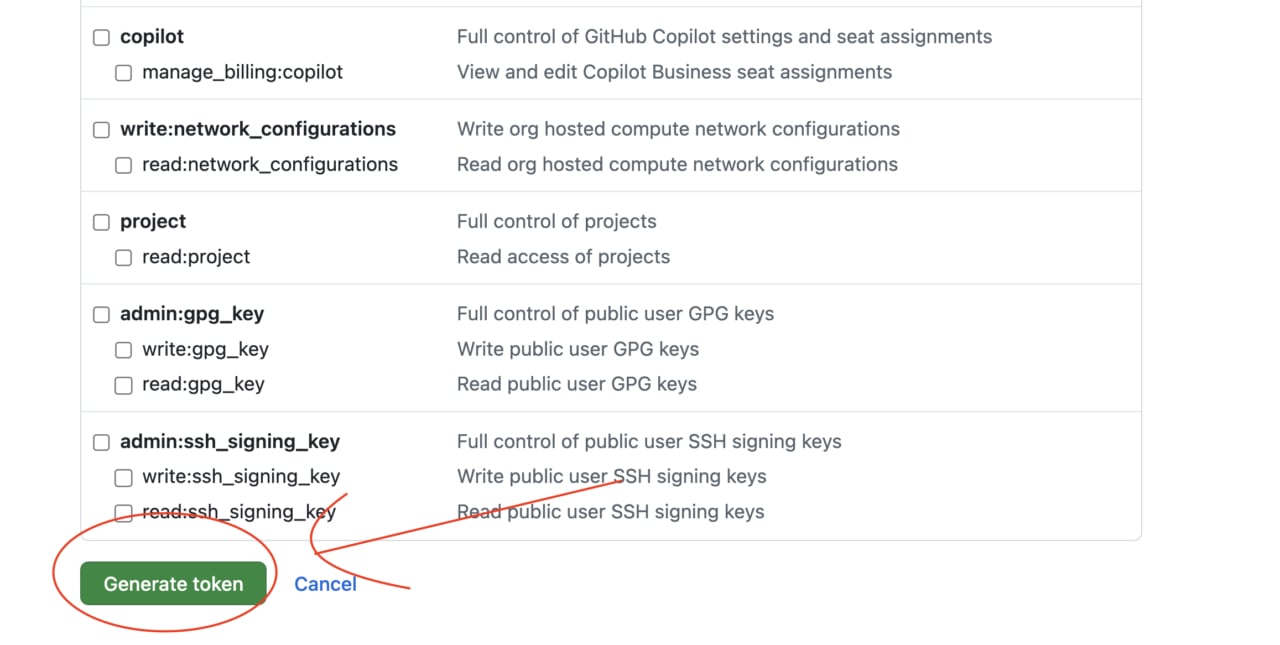
GitHub Generate Token Button
Rush to the absolute bottom of the page and hit the big green Generate token button.
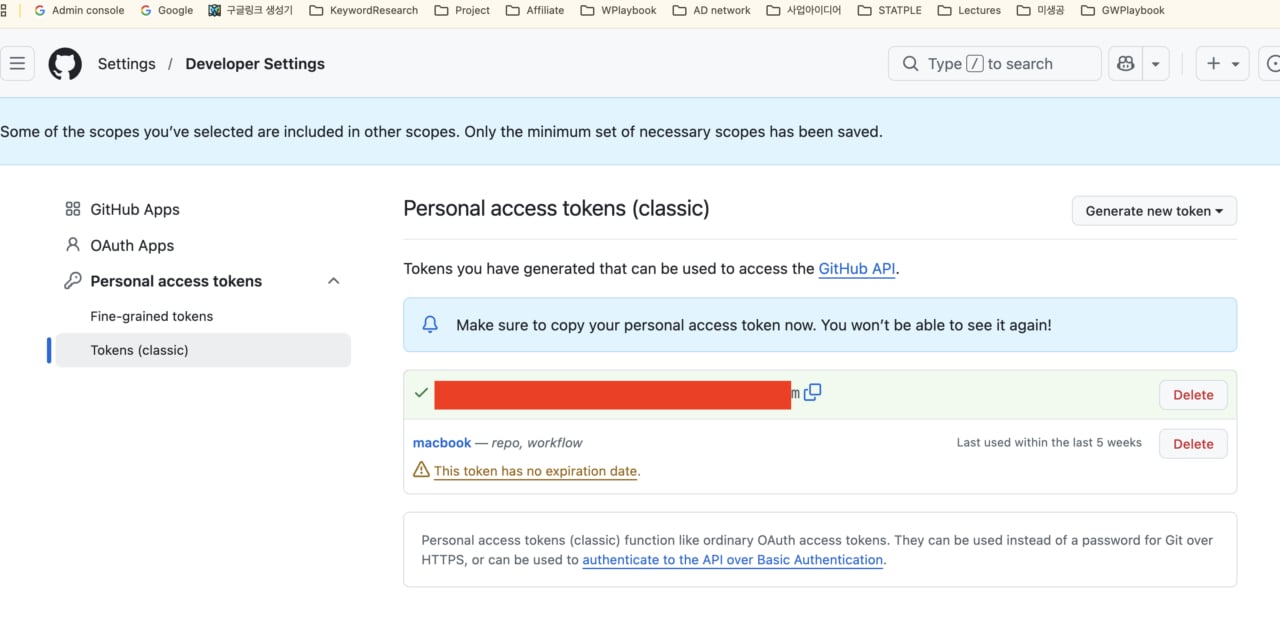
Copy GitHub Personal Access Token
You will be greeted with a long alphanumeric string. Click the copy icon right next to the token text to save it to your clipboard. (Never share this phrase publicly!)
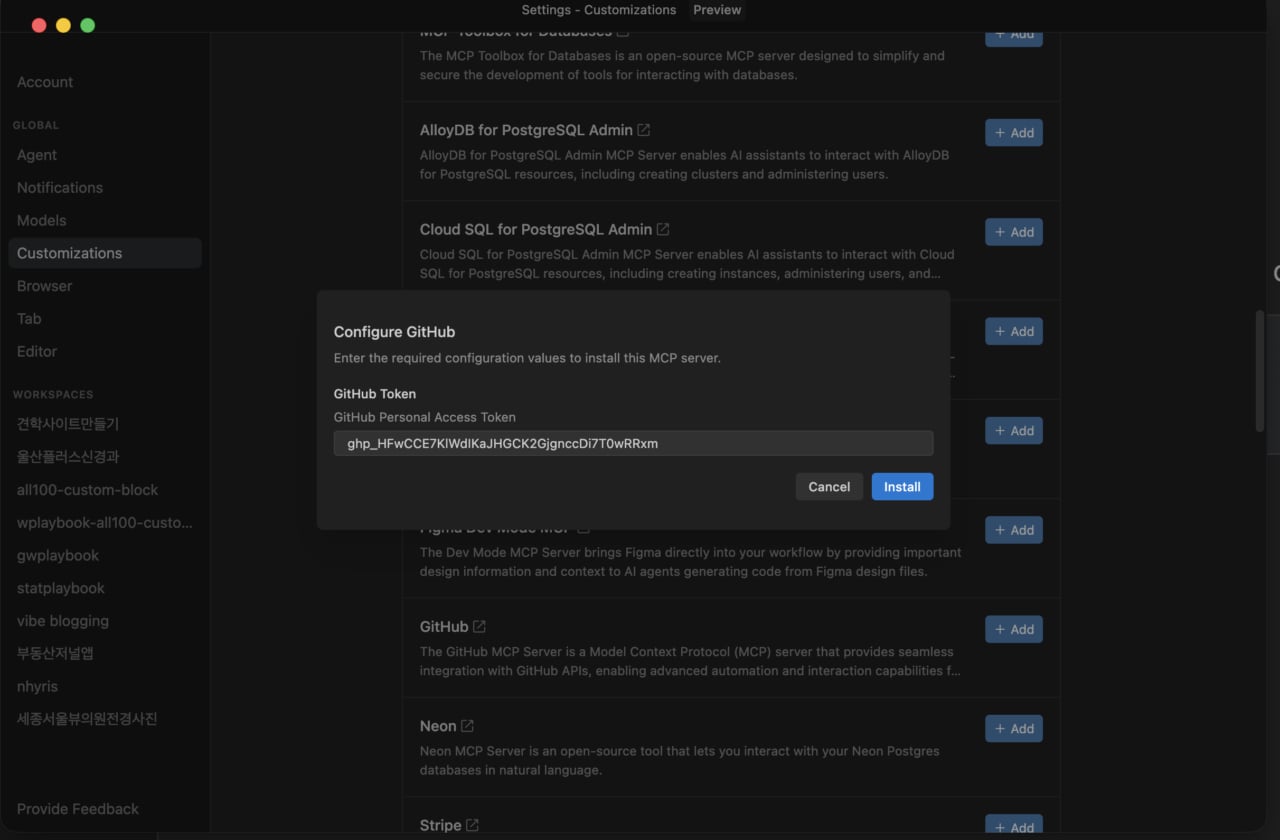
Pasting GitHub Token into Antigravity MCP
Finally, bounce back to the Antigravity modal we initially left open at step 2. Confidently paste your copied token directly into the GitHub Token input window and click the blue Install button. Your integration is successfully initialized!
Conclusion
That covers everything you need to reliably activate the Antigravity GitHub MCP connection point. If you encounter permission-denied errors sporadically moving forward, please review whether you successfully verified the repo scope permission.
Enjoy watching our state-of-the-art AI seamlessly parse through your personalized git repositories—driving unprecedented productivity levels out of thin air!