Have you ever wasted your entire morning writing email replies or wrestling with complex Excel formulas?
An AI that merely drafts emails or fixes spelling is now the bare minimum. The true destructive power of Gemini built intimately into Google Workspace lies in its ‘cross-app connection’ and ‘workflow automation’.
We are revealing 20 hidden Gemini workflows that the top 1% of professionals are quietly using right now to finish their workday an hour early. We’ve also prepared practical prompts you can copy and use immediately, so bookmark this page right away!
Table of Contents
- Google Docs
- 1. Convert Messy Notes into Business Frameworks (OKR, KPI)
- 2. Compress Massive Documents into a ‘1-Pager’ for Executives
- 3. Generate Q&A and Counter-Logics Based on External Data
- 4. Precision Targeting of a Specific Paragraph’s ‘Nuance’
- Google Sheets
- 5. Data Cleansing and Regex Automation
- 6. Debug and Interpret Broken Complex Formulas
- 7. Generate Bulk Dummy Data in 1 Second
- 8. Build Custom Apps Script Without Coding
- Google Slides
- 9. One-Click Document-to-Slide Generation
- 10. Instant Generation of Presentation Slide Imagery
- 11. Auto-Generate Detailed Speaker Notes Based on Slide Content
- Gmail
- 12. Call External Documents Inside Email via @ Tag
- 13. Sentiment Analysis and Core Summarization of Infinite Threads
- 14. Foreign Language Business Localization Translation
- Google Calendar
- 15. Instant Calendar Automation Based on Emails
- 16. Securing Focus Time Through Calendar Analysis
- Google Meet
- 17. ‘Taking Notes For Me’ & Automated Action Item Distribution
- 18. “What was discussed so far?” Late Catch-up feature
- Google Drive
- 19. A ‘Personal Researcher’ Penetrating Your Entire Drive
- 20. Automatic Data Extraction from Scanned/Image Files
- Conclusion: Why You Lose Out if You Don’t Start Workspace Gemini Right Now
- Frequently Asked Questions (FAQ)
- Is my personal file data used for exterior AI training?
- Can I use these identical features with a free personal Gmail?
 Google Docs
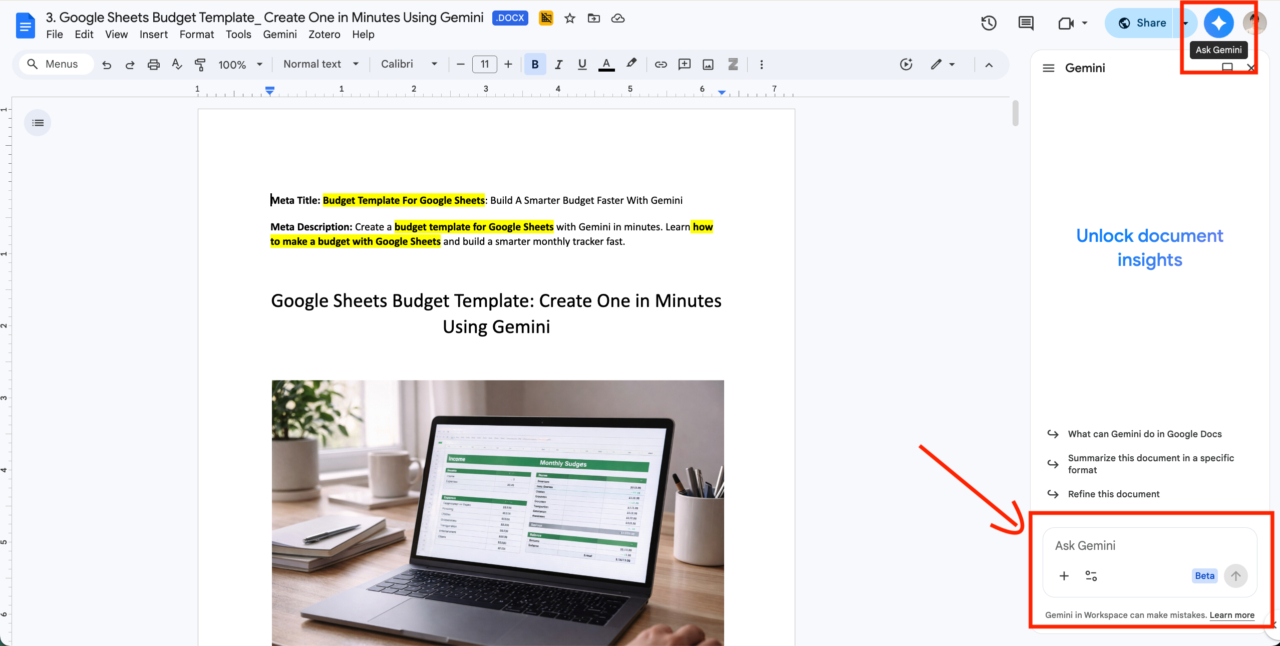
1. Convert Messy Notes into Business Frameworks (OKR, KPI)
If you copy and paste texts scrawled during a meeting or brainstorming notes, Gemini will analyze them and transform them into a clean proposal tailored to your desired business framework such as OKR or KPI. You get the effect of having a professional planner right next to your document editor.
[Usage Example]
- Scenario: When you need to turn fragmented meeting notes into a formal planning report.
- Prompt: “Based on the brainstorming notes below, write a clean reporting document tailored to the marketing team’s OKR (Objective and Key Results) framework for this quarter.”
2. Compress Massive Documents into a ‘1-Pager’ for Executives
Sending a dozens-of-pages long document as-is to a busy C-level executive or team leader is extremely inefficient. By utilizing Gemini in the Google Docs side panel, no matter how long the document is, it will instantly compress it into a 1-page summary (One-pager) that hits all the core points, aiding in rapid decision-making.
[Usage Example]
- Scenario: When you need to report a 30-page industry trend analysis to your team leader.
- Prompt: “Analyze the @2026_TrendReport.docx file and compress it into a ‘core summary one-pager’ so that a busy executive can read it and make decisions in just 1 minute.”
3. Generate Q&A and Counter-Logics Based on External Data
If you upload a competitor’s press release or external proposal to your Drive and have Gemini read it, you can formulate an excellent defensive strategy that strengthens your team’s logic. It identifies the blind spots in the opposing arguments and pinpoints factors that will give you the upper hand in sales meetings.
[Usage Example]
- Scenario: When creating educational materials for the sales team responding to a competitor’s new product launch.
- Prompt: “Read the @CompanyA_NewProduct_Release.pdf, and generate 3 comparison points that will give our product the upper hand in a sales meeting, along with 5 expected customer questions (Q&A).”
4. Precision Targeting of a Specific Paragraph’s ‘Nuance’
You can naturally change the tone or atmosphere of a specific paragraph you want without touching the entire document. If you want to make the introduction of a marketing copy more hooking, or modify the tone of an apology to be more polite, simply highlight the relevant text and instruct it.
[Usage Example]
- Scenario: When the introduction of your proposal is too boring and you want to grab the reader’s attention.
- Prompt: “[Selected text] This introductory paragraph is too plain. Rewrite it slightly provocatively and make it ‘hooking’ to instantly pull in the reader’s curiosity.”
 Google Sheets
5. Data Cleansing and Regex Automation
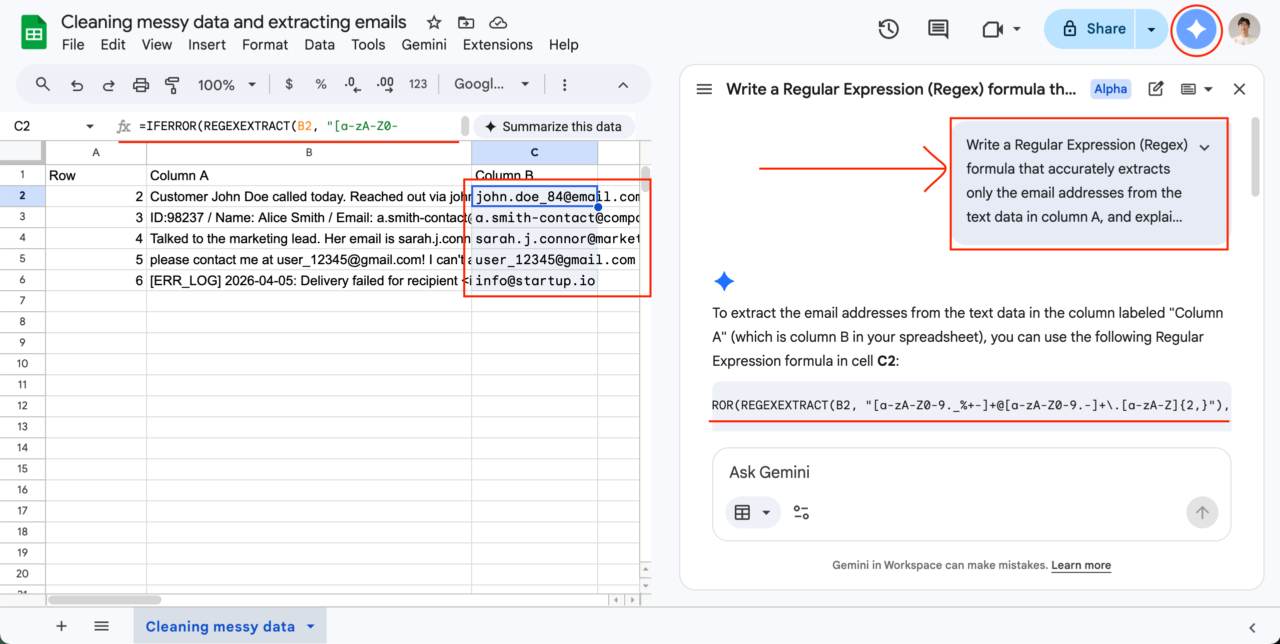
There are times when you only need to extract specific emails, phone numbers, or codes out of chaotic text data scraped from an external system. Instead of writing complex formulas yourself, simply tell Gemini the desired outcome, and it will automatically generate Regular Expressions (Regex) or formulas to apply to the sheet.
[Usage Example]
- Scenario: When you need to separate only customer email addresses from cells mixed with multiple texts.
- Prompt: “Write a Regular Expression (Regex) formula that accurately extracts only the email addresses from the text data in column A, and explain how it works.”
6. Debug and Interpret Broken Complex Formulas
When an incomprehensibly complex formula left behind by a predecessor spits out an error, Gemini becomes an excellent mentor. Copy the broken formula as-is, ask the side panel, and it will analyze exactly where the reference went wrong and provide the newly corrected formula.
[Usage Example]
- Scenario: When you get an #N/A error on a VLOOKUP referring to multiple sheets and can’t find the cause.
- Prompt: “Analyze why this formula =IFERROR(VLOOKUP(A2,INDIRECT(\”‘\”&B2&\”‘!A:Z\”),MATCH(… is returning an error, and modify it to operate correctly.”
7. Generate Bulk Dummy Data in 1 Second
If you need fake (dummy) data to constitute an app development test or a presentation demo screen, leave it to Gemini. Simply specify the target conditions and required Column names, and it will instantaneously crank out a massive table of ready-to-copy data.
[Usage Example]
- Scenario: When you need customer data to prototype a new membership dashboard.
- Prompt: “Create 50 rows of dummy data for female shopping mall members in their 20s and 30s in Korea. Make the columns consist of Name, Email, Registration Date, Recent Purchase Item, Total Payment.”
8. Build Custom Apps Script Without Coding
If you want to turn a repetitive daily task into a macro but don’t know how to code, Gemini will write the entire architecture for you. Simply explain the action you want to automate in the sheet in plain words, and it will provide flawless Google Apps Script code that you can copy and paste.
[Usage Example]
- Scenario: When you want a feature that automatically paints a row when the task status changes to ‘Done’.
- Prompt: “Write a Google Apps Script code that automatically changes the background color of the entire row to gray whenever the value in the ‘Status’ column changes to ‘Done’ in this sheet.”
 Google Slides
9. One-Click Document-to-Slide Generation
You can now stop the trivial labor of staying up all night ‘copy-pasting’ a proposal enthusiastically drafted in Docs over to Slides. Open Slides and command Gemini to build a presentation based on a specific document, and it will automatically partition it into structured slides according to the content.
[Usage Example]
- Scenario: When you need to quickly transform a text-based new product proposal into a 10-page presentation slide deck.
- Prompt: “Based on the @NewProduct_DetailedPlan.docx document, create a 10-slide presentation material. Consist each slide of a title and 3 core bullet points.”
10. Instant Generation of Presentation Slide Imagery
It completely eliminates the time wandering through Google and Pinterest searching for free stock images to raise the quality of your presentation. Describe an image that fits your brand tone-and-manner via the right panel, and you can instantly insert a perfect, copyright-free high-resolution image.
[Usage Example]
- Scenario: When you need a sophisticated image fitting the cover slide themed ‘Global Collaboration’.
- Prompt: “Generate a pastel-toned image in watercolor illustration style showing team members of various nationalities smiling and having a video conference in a modern downtown Seoul boardroom.”
11. Auto-Generate Detailed Speaker Notes Based on Slide Content
While the slide design is completed, there are times you freeze upon what to say right in front of the audience. Instruct Gemini to grasp the context of the entire slide deck, and it will write out a colloquial speaker script right inside the note section at the bottom of each slide that isn’t awkward at all.
[Usage Example]
- Scenario: When the presentation is tomorrow, but you haven’t prepared your speaking script for each slide page yet.
- Prompt: “Grasp the context of this entire slide deck, and draft a colloquial speaker note script for the bottom of each slide that I can actually read aloud while presenting to the audience.”
 Gmail
Gmail
12. Call External Documents Inside Email via @ Tag
There is no need to open a dozens-of-pages long PDF proposal or past meeting minutes simultaneously to summarize them via email. If you type the @ symbol inside the email draft window to call upon a specific document saved in your Drive, Gemini will automatically read it, extract only what you want, and draft the email.
[Usage Example]
- Scenario: When summarizing part of a long proposal to send to another department requesting cooperation.
- Prompt: “Read the @2026_FirstHalf_MarketingPlan.pdf file, summarize just the Budget and Expected Outcomes into 3 lines, and write a task-sharing email to the team members.”
13. Sentiment Analysis and Core Summarization of Infinite Threads
Don’t scroll continuously up and down trying to catch up on endlessly long email chain threads bouncing between clients or partners. Click the star icon at the top of the email, and it not only summarizes the entire story but understands the context of the text—instantly highlighting the sender’s pain points or your immediate action items.
[Usage Example]
- Scenario: When grasping a client’s claim thread filled with numerous replies upon returning from vacation.
- Prompt: “Summarize this entire email thread, but list out the 3 main Pain Points of the counterpart and the immediate follow-up actions we need to take.”
14. Foreign Language Business Localization Translation
It’s on a whole other level from general translators that only execute literal translations. It smoothly polishes the expressions fitting the corporate culture and business etiquette of the country receiving the email. It localizes blunt sentences or excessive modesty to suit local cultures, leaving a highly professional impression.
[Usage Example]
- Scenario: When sending a polite request email to an executive at the US branch without being fully fluent in English.
- Prompt: “I am sending this Korean email to an executive at the US branch. Translate and polish it into an American business casual tone so it isn’t too blunt or direct.”
 Google Calendar
15. Instant Calendar Automation Based on Emails
While reading an email to set up a schedule, there’s no need to arbitrarily open a separate Calendar tab and copy dates and attendees manually. Instruct Gemini on the right side panel of Gmail, and it automatically grasps the time, date, and attendee information to instantly set up the Calendar schedule on the spot.
[Usage Example]
- Scenario: The moment you just finished discussing next week’s meeting date/attendees via email with a client.
- Prompt: “Add the meeting schedule for next Tuesday at 3 PM discussed in this email thread to my calendar, and send out invitations to the mentioned attendees.”
16. Securing Focus Time Through Calendar Analysis
If you don’t even have time to focus on your real work due to endless meetings, leave your schedule analysis to Gemini. It analyzes the packed schedules on your calendar and proactively finds empty blocks of time (focus time) for you to work intensely, while also providing scheduling advice to raise your productivity.
[Usage Example]
- Scenario: When you have too many meetings and must secure continuous blocks for personal tasks in advance.
- Prompt: “Analyze my calendar schedule for this week, and hunt down 3 separate 2-hour continuous blocks of free time where I can entirely focus on my work, and suggest them to me.”
 Google Meet
17. ‘Taking Notes For Me’ & Automated Action Item Distribution
Stop typing frantically which prevents you from focusing on the actual conversation or atmosphere during video conferences on Meet. While the meeting is live, AI automatically takes note of the context, and once it concludes, it cleanly generates a task distribution table highlighting what each attendee needs to do by next week.
[Usage Example]
- Scenario: When an intense 1-hour brainstorming debate concludes and tasks need to be distributed per team member.
- Prompt(After closure): “Based on the 1-hour meeting we just had, organize the Action Items the design and development teams need to handle by next week into a table format.”
18. “What was discussed so far?” Late Catch-up feature
If you join a video conference 10 minutes late due to an urgent call, don’t interrupt your coworkers to ask what’s going on—just secretly ask Gemini. Open the side panel at the bottom right of Meet and ask, and it will provide real-time catch-up notes on the core agendas discussed while you were missing.
[Usage Example]
- Scenario: When you are late to a weekly meeting and have totally zero context on what topic is currently being debated.
- Prompt: “What were the core agendas discussed before I came in? What issues are left undecided?”
 Google Drive
19. A ‘Personal Researcher’ Penetrating Your Entire Drive
The era of helplessly searching across dozens of Drive folders to find old documents is over. Gemini on the right side panel is not a simple chatbot; it is a mighty semantic search and analysis engine that seeks out and reads documents based on your entire Drive data to deduce insights directly.
[Usage Example]
- Scenario: When looking for common failure factors across the past several years of year-end reports for this year’s strategic planning.
- Prompt: “Analyze all ‘Year-End Settlement Report’ documents from the past 3 years inside my Google Drive, and find and summarize 3 Pain Points that were repetitively pointed out every year.”
20. Automatic Data Extraction from Scanned/Image Files
You no longer have to manually type the content of receipts, business cards, or scanned PDF documents uploaded to Drive over into Excel. Utilizing Gemini’s Vision capabilities, if you select specific image files, it precisely reads the text inside the images and organizes them cleanly into a table or text format.
[Usage Example]
- Scenario: When you need to organize dozens of receipt photos into Excel for expense reports after a business trip.
- Prompt: “Extract the dates, locations, and amount values from the images in @BusinessReceipts_Bundle.jpg into an Excel table structure and organize them cleanly as text.”
Conclusion: Why You Lose Out if You Don’t Start Workspace Gemini Right Now
We haven’t just looked at it from the perspective of ‘This feature exists,’ but rather ‘How can this organically reduce my workload?’ Experience the magic of finishing work an hour earlier than everyone else while skyrocketing the quality of your output immediately on your next commute.
Frequently Asked Questions (FAQ)
Is my personal file data used for exterior AI training?
No. Google Workspace Gemini adheres to uncompromising enterprise security standards, meaning its privacy controls are extremely strict and your internal data is absolutely never utilized to train external public models.
Can I use these identical features with a free personal Gmail?
While some simple generation-assist features act similarly under a paid Google One plan, the seamless cross-Drive integration system or the robust security environment blocking external leaks fundamentally operate exclusively under Enterprise-tier Google Workspace plans.