Picture this. Someone sets up a support@ address, drops the password in a group chat, and three people start logging in from different locations. Google flags it. Account locked. The verification code is going to a phone nobody can find. Customers waiting.
It’s one of those problems that feels small until it isn’t.
Here’s the reality: you never needed to share the password in the first place. Gmail offers built-in solutions to manage team access securely, and several third-party tools provide the same functionality. None of them requires distributing login credentials across your entire team.
Table of Contents
- Why You Shouldn’t Share Gmail Passwords
- Method 1: Gmail Email Delegation — Best for Simple Sharing
- How to set it up:
- Method 2: Google Groups Collaborative Inbox — Best for Small Teams
- How to set it up:
- Method 3: Third-Party Shared Inbox Tools — Best for Growing Teams
- Best Practices for Managing a Shared Inbox
- Conclusion
Why You Shouldn’t Share Gmail Passwords
Three reasons, quickly.
First — 2FA. Google sends verification codes to the account owner’s phone. Someone logging in using a new device requires such a code. They don’t have it. Now they are running after whoever has the number at 9 am on Monday.
Second — no accountability. Five people, one login. Who replied to that client? Who deleted the wrong email? Nobody knows. There’s no record of anything, and when something goes wrong, and it will, there’s no way to trace it back.
Thirdly, staff turnover. Someone leaves; you change the password and redistribute it to everyone. Round and round it goes. New password, same mess, just with a slightly different group of people who now have access to an account they probably shouldn’t.
There are better ways to handle this. Here are the three methods that actually work.
Method 1: Gmail Email Delegation — Best for Simple Sharing
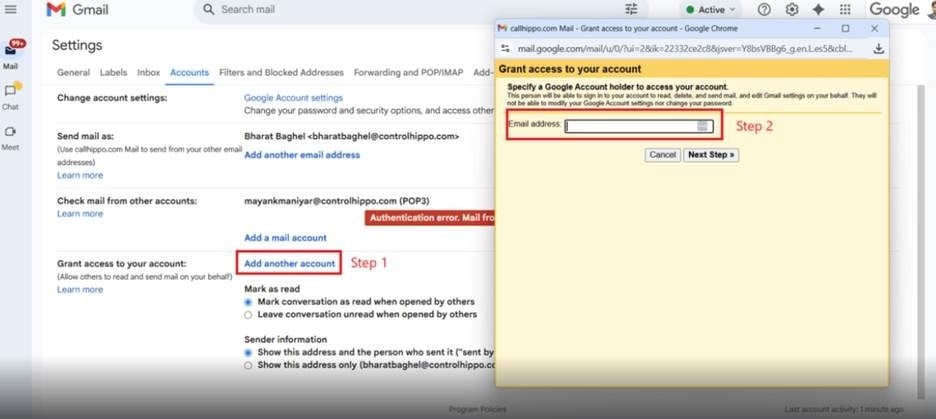
Gmail email delegation is built directly into Gmail—no extra tools and no additional cost. Here’s the simplest way to understand it: the person you grant access to never logs into your account. Instead, they access the mailbox securely through their own account.
They log in as themselves, switch the view to your inbox, and start working. Replies go out with their name on them, which means accountability is baked in from the start. You don’t hand over a password. You don’t share anything sensitive. You just extend access — and you can take it back just as easily if you need to.
How to set it up:
- Open Gmail → gear icon → See all settings
- Click the Accounts and Import tab.
- Find Grant access to your account → Add another account
- Enter their email address → Next Step → Send email to grant access.
- They accept the invite from their inbox.
- Done — they switch to your inbox from their account dropdown.
Five minutes, start to finish.
Works well for: An assistant managing a manager’s inbox. A small team covering a single address. Anyone who needs simple access without a shared password.
Limitations: There are no internal notes or collision alerts, which means two people can respond to the same email without realising it. Delegates also cannot access Google Chat through the delegated account. In addition, Gmail delegation has limits—up to 10 delegates for personal Gmail accounts and up to 40 for Google Workspace. It works well for low email volumes, but it can become difficult to manage as communication activity increases.
Method 2: Google Groups Collaborative Inbox — Best for Small Teams
The Google Workspace users can convert a Google Groups address into a collaborative inbox that functions as a shared queue. Team members can receive and respond to emails together, assign conversations, and mark messages as resolved once an issue has been handled.
How to set it up:
- Go to groups.google.com → create or open a group.
- Make the group your common mail (e.g. support at yourcompany.com)
- In Group Settings → enable Collaborative Inbox features.
- Add team members to the group.
- Incoming emails now land in a shared queue that everyone can see and manage.
Works well for: Small teams inside Google Workspace who need basic assignment and tracking without paying for extra software.
Limitations: The interface is genuinely clunky — it feels outdated and doesn’t handle high volume smoothly. There are no internal thread comments for team collaboration, and filtering options are limited. Most teams outgrow it faster than they expect.
Method 3: Third-Party Shared Inbox Tools — Best for Growing Teams
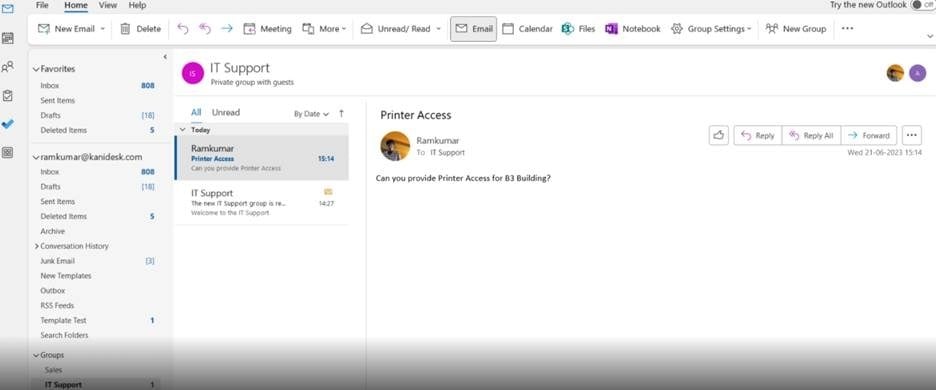
When the native Google options stop being enough, which happens sooner than most people expec,— dedicated shared inbox tools are the answer.
Tools like Hiver, Drag, and Front plug directly into Gmail. The interface stays familiar. What changes is everything underneath:
- Email assignment with one click
- Internal notes on threads — discuss without forwarding
- Collision detection — know when a colleague is already on it.
- SLA tracking — see response times and spot gaps
- Status tags — open, pending, closed — so nothing disappears.
For any team seriously managing a shared Gmail account at real volume, this is where the investment pays off. Visibility alone is worth it.
Best Practices for Managing a Shared Inbox
Tools can help streamline communication, but they are only part of the solution. The processes and workflows behind those tools play an equally important role in keeping a shared inbox oorganised responsive, and efficient.
Define ownership upfront. Billing questions, support requests, general inquiries — decide who handles what before the inbox goes live. Ambiguity is how emails sit there for three days while everyone assumes someone else is on it.
Agree on labels. Gmail labels work well when everyone uses the same system. Pick it together and actually stick to it. One person going rogue with custom labels breaks the whole thing.
Set a response time. Whether it’s two hours or same-day, make it explicit. An SLA nobody knows about isn’t an SLA.
Review regularly. A weekly scan of unread threads within a few minutes will prevent the slow accumulation that any mass mail summary box in any shared inbox will gravitate towards, unless someone is closely monitoring it.
Conclusion
Managing a shared inbox can quickly become chaotic when multiple people are involved without the right system in place.
Gmail email delegation — simple, free, works for basic access sharing without passwords. Google Groups collaborative inbox — a step up for small Google Workspace teams who need everyone looking at the same queue. Third-party tools like Hiver or Front — the right call when your team needs real assignment, tracking, and accountability at scale.
Pick what fits where you are right now. The goal is simple — a shared inbox Gmail setup where nothing falls through the cracks and nobody’s fishing a password out of a group chat.Want more practical Google Workspace guides? Explore the Gmail section on the GW Playbook.